
Requesting, configuring and removing tools in your workspace
Once you have completed your workspace metadata, the workspace admins and leads in your workspace will be able to request tools through the workspace toolbox, located in your workspace sidebar.
After navigating to the toolbox:
- Select the tools you would like to add, configure or remove from your workspace
- Optional: Configure the tools you are requesting
- Review the information
1. Select tools
1.1 Adding tools for the first time
When navigating to the toolbox for the first time, you will see the following screen:
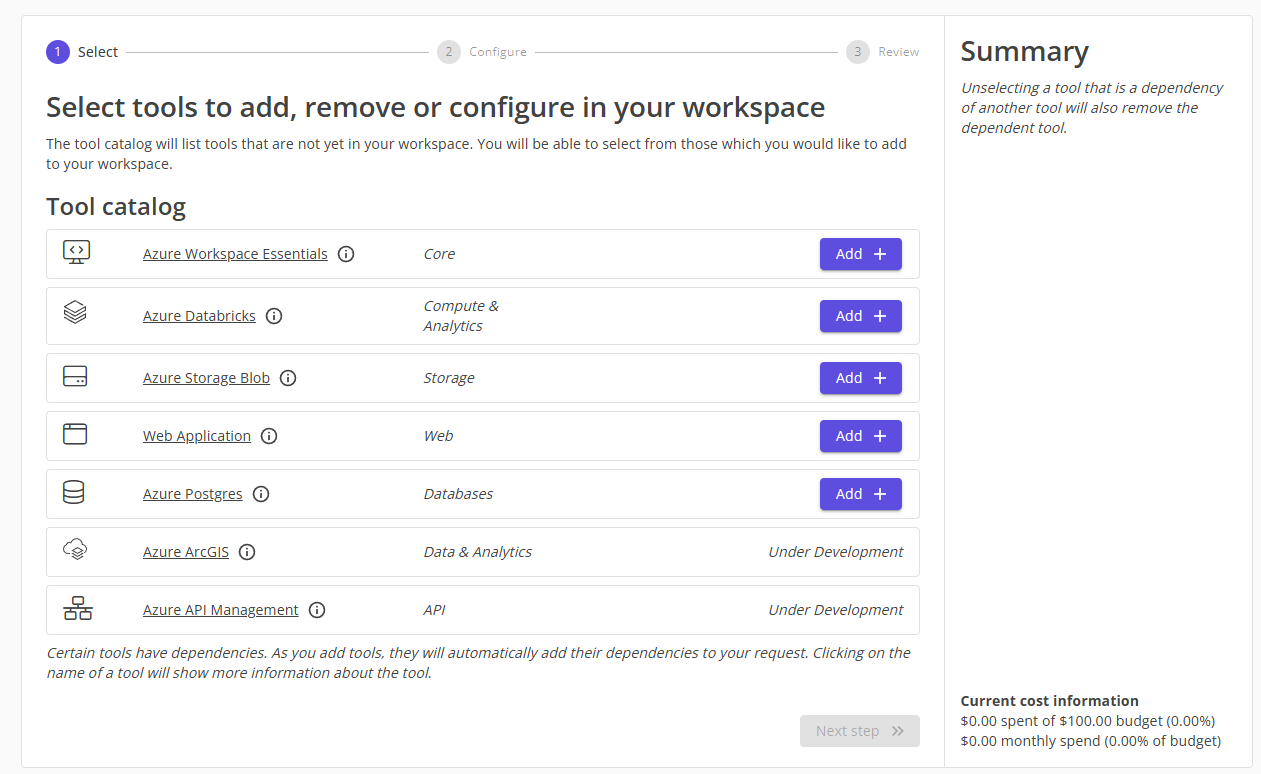
The first step of requesting new tools is to select the tools you would like to add to your workspace. The tool catalog will list all our available and upcoming tools. Each tool has a category, and by clicking on the name of the tool, you will the tool's information sheet:
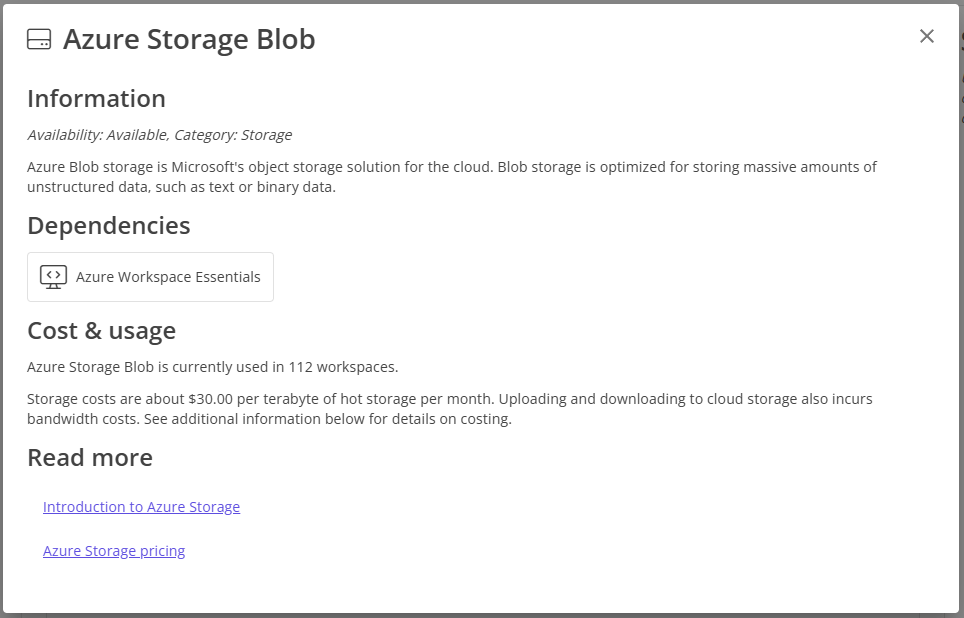
This sheet contains cost, usage, dependency and other useful information about the tool.
Once you have decided to add a tool, click the "Add" button of the tool you want to add. This will add the tool to your request, and remove it from the catalog. You will see the tool appear in the "Add" section of your summary:
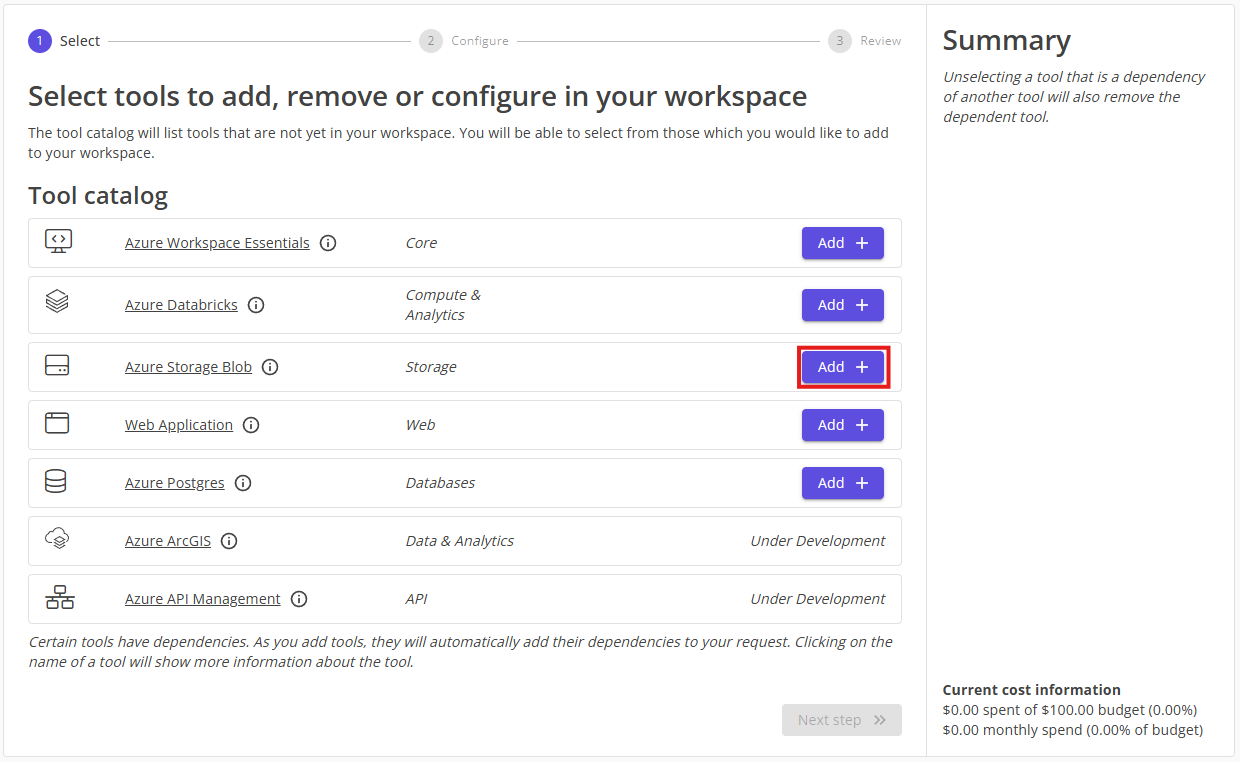
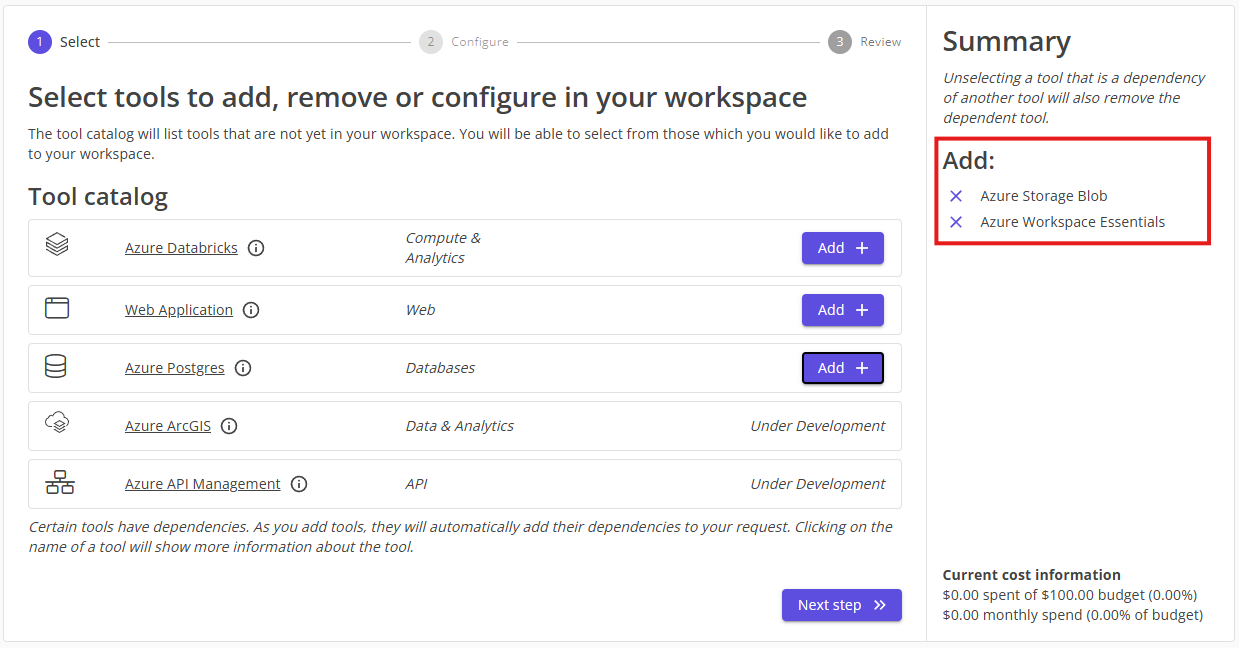
Note: When adding a tool, all of it's dependencies are automatically added to your request. For example, in the above screenshots the tool "Azure Storage Blob" has been added, and it's dependency "Azure Workspace Essentials" has also been added to the request.
You can also undo your selection by clicking on the "X" icons next to the tool name. This will remove the tool from your request, and add it back to the catalog:
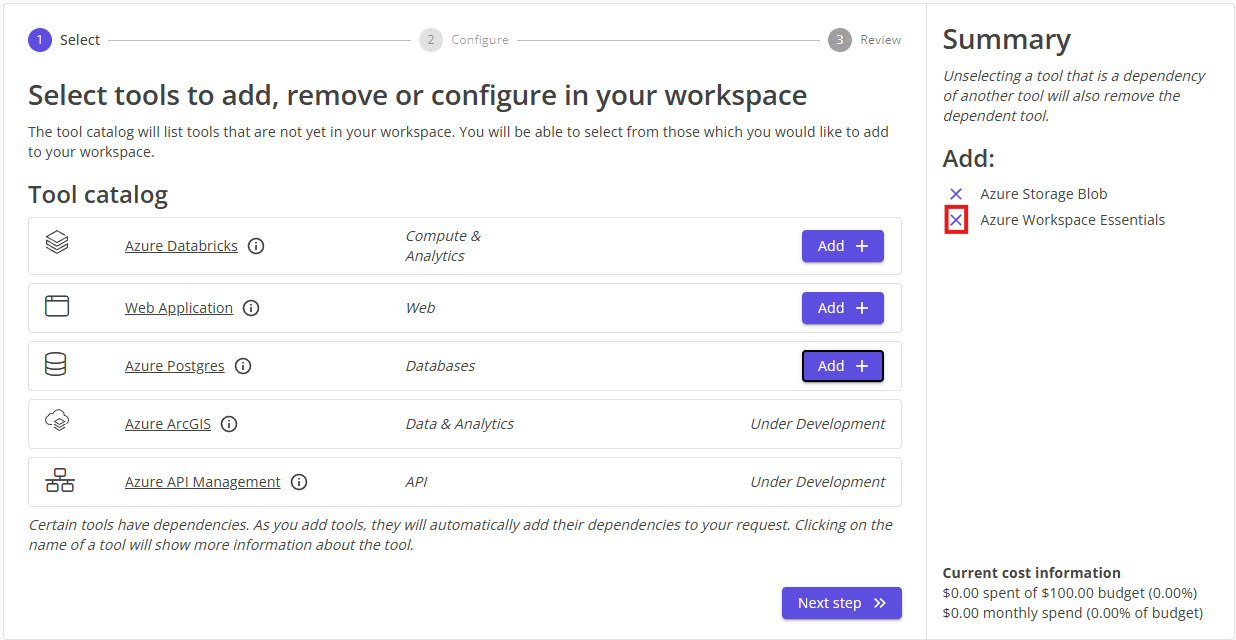
Note: If you undo a tool selection that is another tool's dependency, the dependent tool will also be removed from your request. Furthermore, if you remove a tool, it's dependencies are not automatically removed from your request.
1.2 Manage existing tools
If you have already requested tools in your workspace, you will see the following screen:
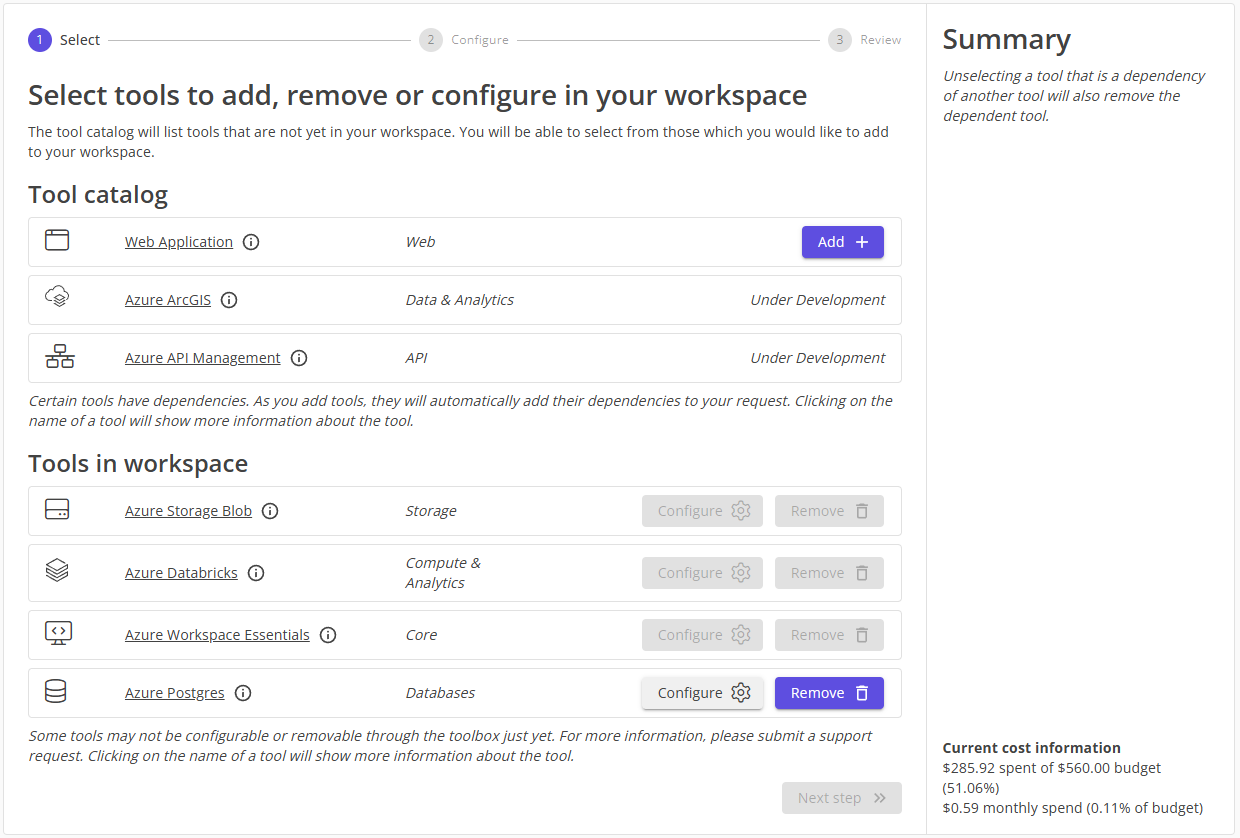
In addition to being able to add new tools, you can also manage certain existing tools. You can also see a small cost summary of your workspace at the bottom of the "Summary" section. This cost summary describes the current state of your workspace.
Note: Not all tools can be self-managed. Certain tools can be configured, and others can be removed, but they can all be ultimately managed or removed by contacting the FSDH team.
You can select tools to configure by pressing their "Configure" button, and similarly you can remove them by pressing the "Remove" button. These will add them to your request under their corresponding section. Just like when adding tools, you can undo your selection by pressing the "X" icon next to the tool name.
Once you have selected the tools you want to add, configure or remove, proceed to the next step.
2. Optional: Configure tools
If you are adding a tool that has configuration options, or if you are configuring an existing tool, you will see the "Configure" step of the request:
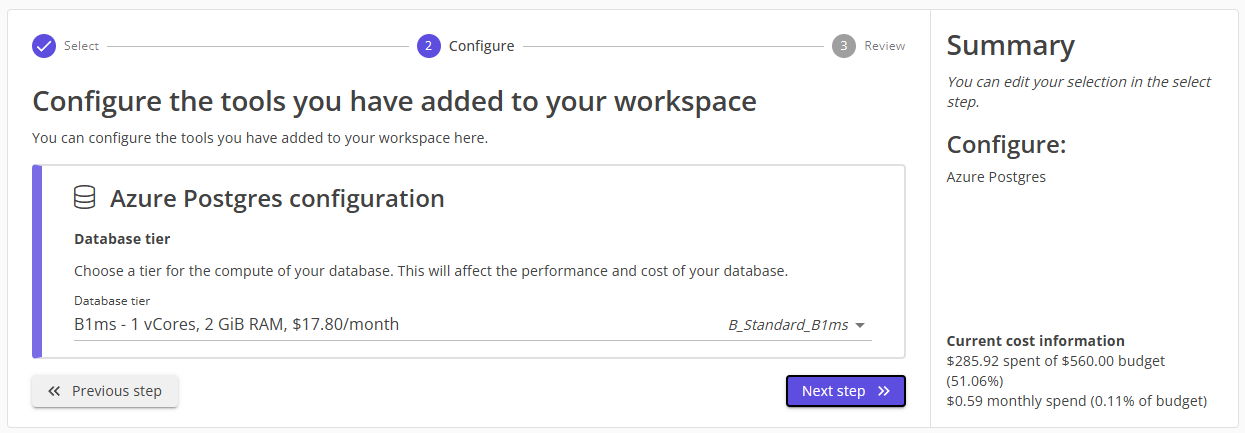
This step allows you to make some tool-specific hardware configuration choices. The options that are selected by default are the default configurations that we offer. You can make changes to the configuration of each tool by completing their individual configuration forms. The options available to you will depend on the tool you are configuring.
Once you have selected the configuration options you want, proceed to the next step.
3. Review tool request
The final step of the request process is to review your request. This step will show you a summary of the tools you are requesting, and their configuration options. In addition, you are given a short cost estimation for each tool, and you can once more click on the tool name to see the tool information sheet.
Review the information shown on-screen, and if you are happy with your request, click on the "Complete request" button. This will initiate the submission process, which verifies the validity of your request, then sends it to the automated system for processing:
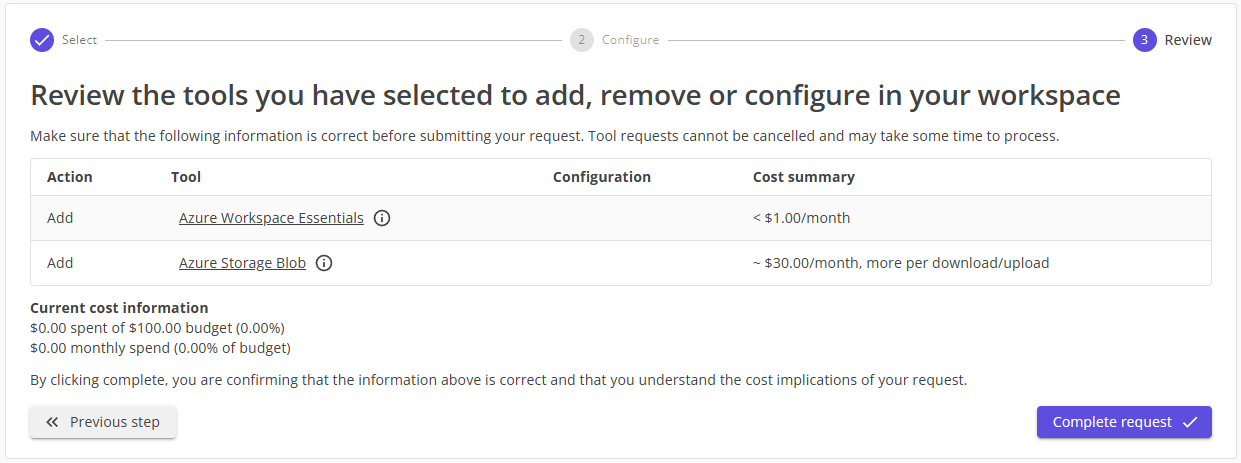
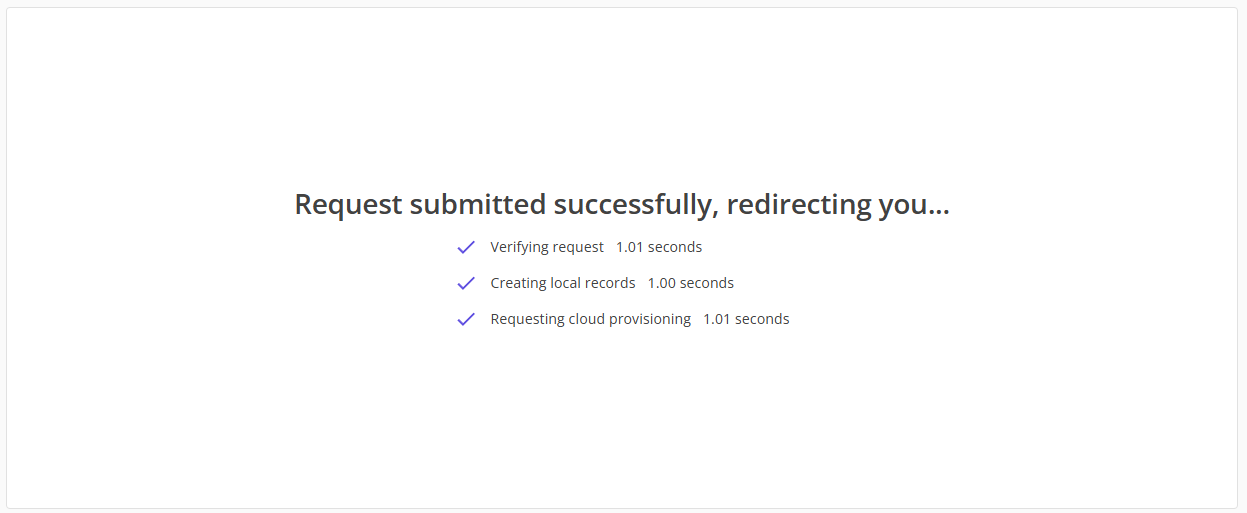
Once the submission process is complete, you will be redirected to your workspace's dashboard.
Note: If the submission process fails, please contact the FSDH team using a support request.
Depending on the tools you requested and the current queue, the processing time may vary. If a tool is not available in your workspace within 2 hours, please submit a support request to the FSDH team.