Federal Science DataHubFederal Science DataHub
  • English
  • Français
  • English
  • Français
  • Overview
  • Managing Workspaces and Users

    • Getting a workspace (only available on the GC network)
    • Estimate costs (only available on the GC network)
    • Account Setup
    • Requesting, configuring and removing tools in your workspace
    • Invite a user
    • Change a user role
    • Manage your CBR & workspace budgets
  • Storage

    • Working with Azure Storage
    • Bring Your Own Storage

      • Import AWS S3 Bucket
      • Import Azure Storage
      • Import Google Cloud Platform Storage
    • Access Storage in Databricks
    • Use AzCopy to Interact with Storage
  • Databricks

    • Getting Started with Databricks
    • FSDH Cluster Policies
    • MLFlow: AutoML and Experiments
    • Databricks Workflows
    • Dashboarding

      • How to Dashboard in Databricks
      • Dashboarding Tool Comparison
    • External Extensions

      • Git/GitHub Integration with Databricks
      • Databricks VS Code Extension
      • Working with Conda
      • Connecting Google API to Databricks
  • PostgreSQL

    • Create and use a PostgreSQL Database
    • Add a User to PostgreSQL on FSDH
    • PostgreSQL vs Azure Databricks Database Features
  • Web Applications

    • Hosting Web Apps on DataHub
  • Migrating to Production

    • Migrating Storage
    • Migrating Databricks
    • Migrating PostgreSQL
    • Migrating Web Apps
  • User Guidance

    • Account Management and Access control of workspaces
    • Backup and Recovery
    • Github and code repo management
    • Incident Detection & Response
    • Monitor Usage
    • Monitoring and Auditing a Workspace
    • Source code
    • Restricted File Types on FSDH Storage
  • Terms and Conditions

Account Setup

This will guide you through the process of setting up your account for the Federal Science DataHub (FSDH).

Note: To create an account, you must either create a workspace using the GC Hosting Services Portal or be added to an existing workspace by a workspace administrator.

Departmental Login
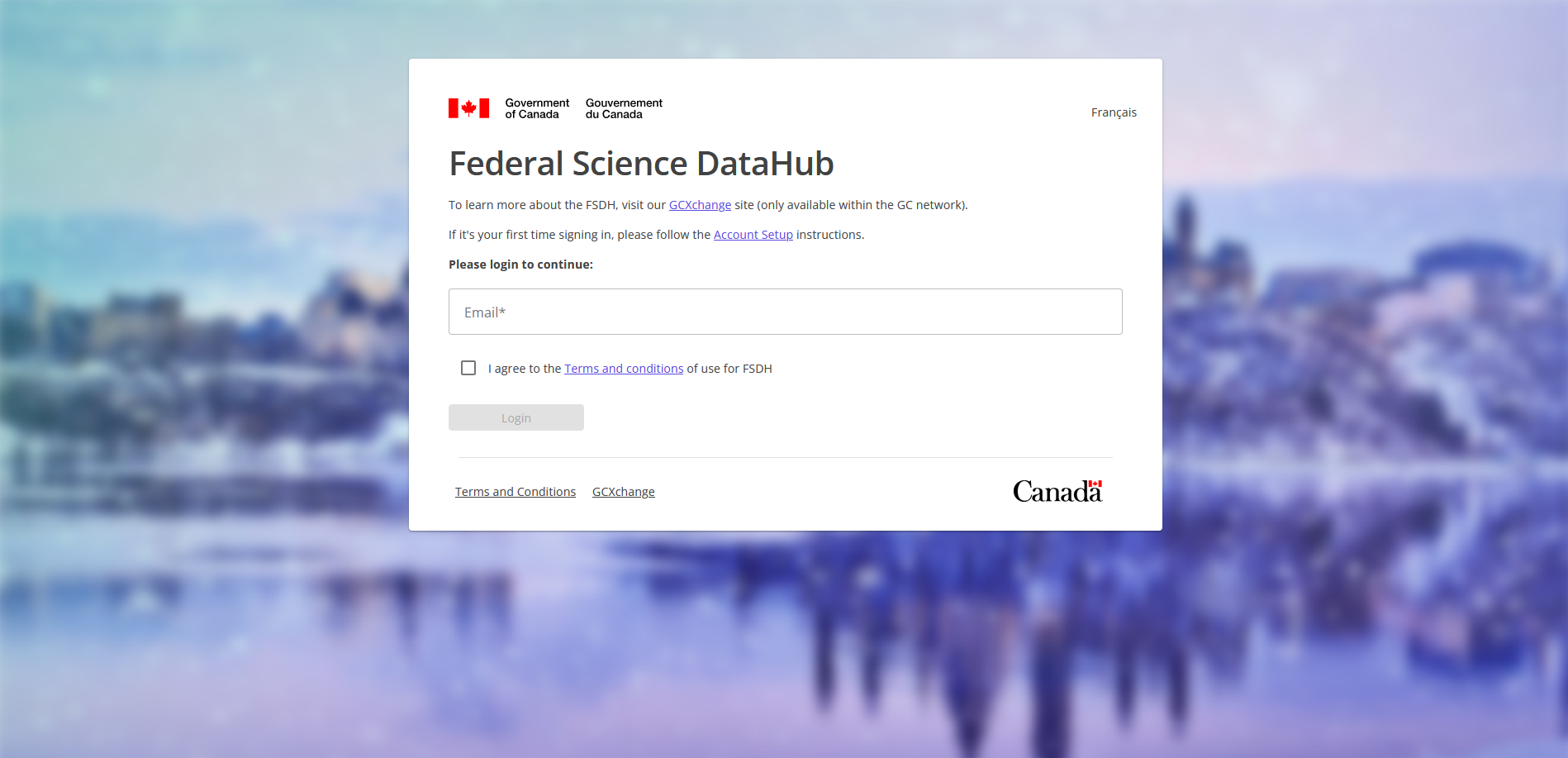
Login Page

  1. If you have an FSDH account, click the Login button to be redirected to your departmental login page.

    Note: If you have not registered, you can click the Register instead link to navigate to the registration page.

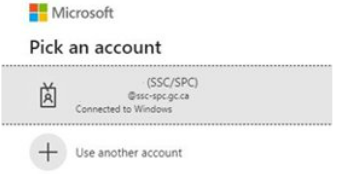
  2. Select your Government of Canada account to login. Pick an account
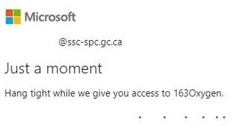
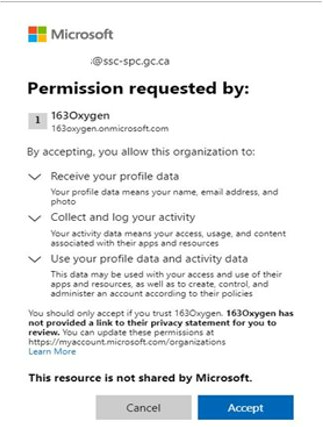
  3. Read and accept the permissions required by the FSDH application in our Azure Tenant 163Oxygen. Permissions
  4. Wait for the next prompt to appear. Just a moment

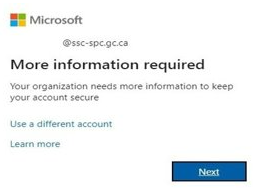
  5. Click NextMore information required

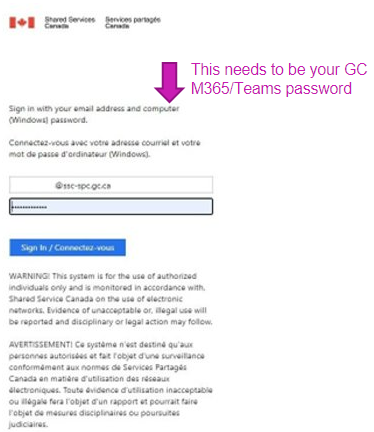
  6. Input your Government of Canada email address and your M365/Teams password.

    Note: Some organizations use your network password as your M365/Teams password. If you are unsure, please contact your IT department.Password entry

Multi-Factor Authentication

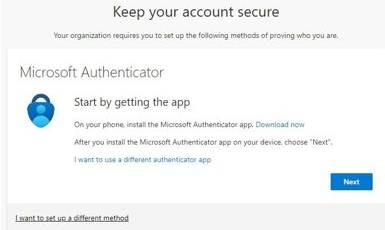
Setup Microsoft Authenticator App

Note: If don't currently use the Microsoft Authenticator app, you can skip this section to setup alternative methods to verify your account.

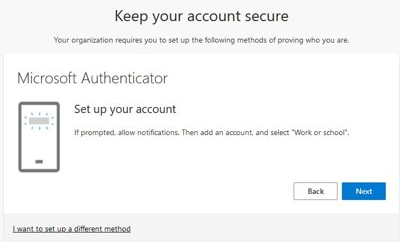
  1. Click Next to continue. MFA Next

  2. Click Next to continue. MFA Next

  3. Scan the QR code with the Microsoft Authenticator app. MFA Scan QR Code
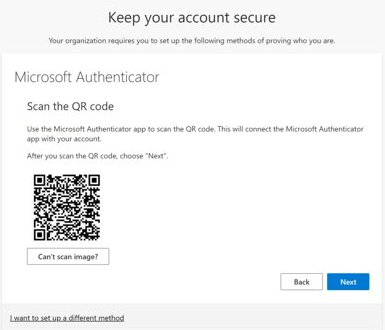
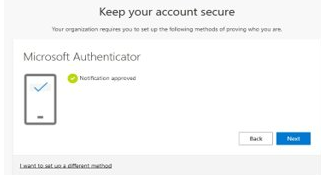
  4. Verify prompt in the Microsoft Authenticator app. MFA Verify Prompt
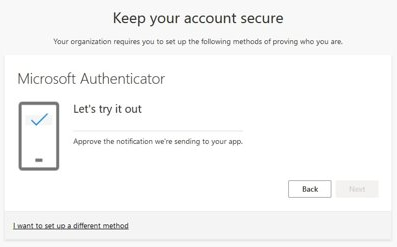
  5. Click Next to continue. MFA Next

  6. Click Done to complete Multi Factor Authentication setup. MFA Done
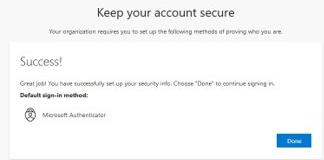
(Optional) Setup Alternate MFA Methods

  1. Click the I want to use a different authenticator app link. MFA Alternate Methods

  2. Select your preferred method of MFA and click Next. Alternate MFA Methods
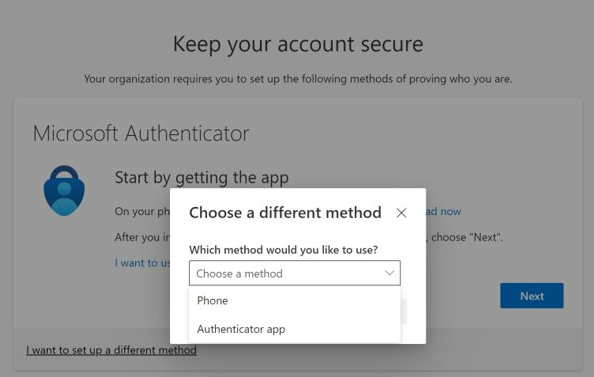
Note: This section will cover setting up MFA with a phone number. If you choose to use a different method, please follow the on-screen instructions.

  1. Input a phone mobile number (work or personal) that can receive SMS messages and click Next. Enter phone number
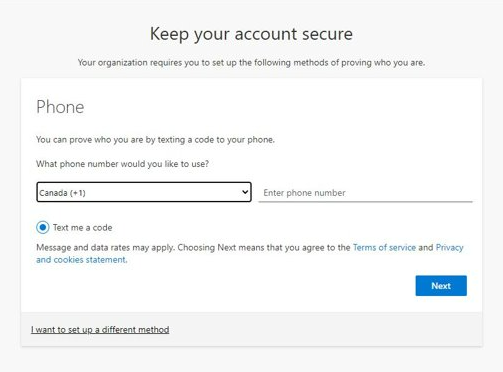
  2. Input the code received via SMS to the phone number provided previously and click Next. Enter SMS Code
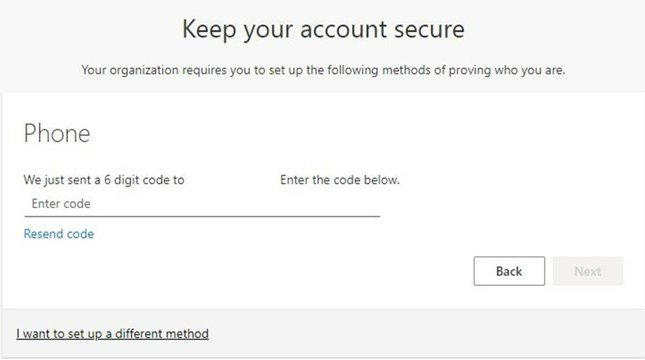
  3. Confirm SMS verification and click Next. Confirm SMS verification
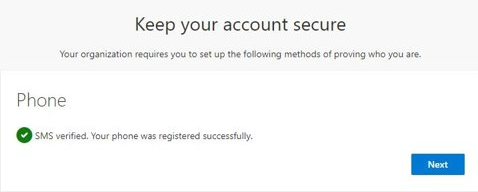
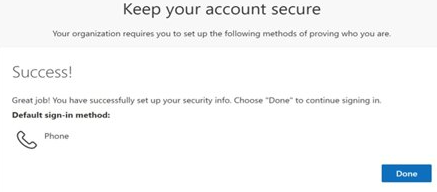
  4. Phone MFA setup is complete. Click Done to continue. Phone MFA Complete

Sign In

Once you have completed the registration and MFA setup process, you can sign in to the FSDH application.

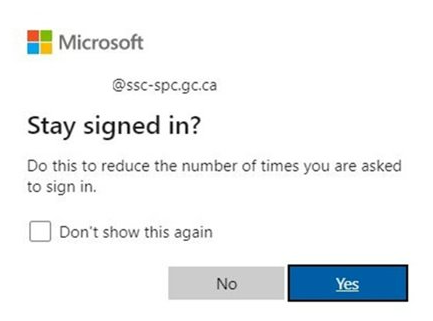
  1. (Optional) Click Yes to stay signed in. Stay signed in

  2. Select your language of preference (English or French) from the dropdown and click Save. Language selection
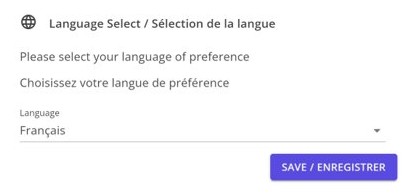
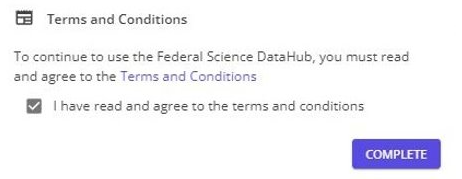
  3. Click on the Terms and Conditions link to review the terms and conditions. Check the box to accept the terms and conditions and click Complete. Terms and Conditions

Note: Important reminder that the FSDH is only approved for unclassified data.

Edit this page on GitHub
Last Updated: 2026-04-13, 11:39 a.m.
Previous
Overview
Next
Requesting, configuring and removing tools in your workspace