Invite a user
This guide will cover how to invite a user to your workspace.
Note: Only users with the
AdminorLeadroles can invite another collaborator.
Navigate to your workspace
Click on the
View Memberslink in the top right corner of the page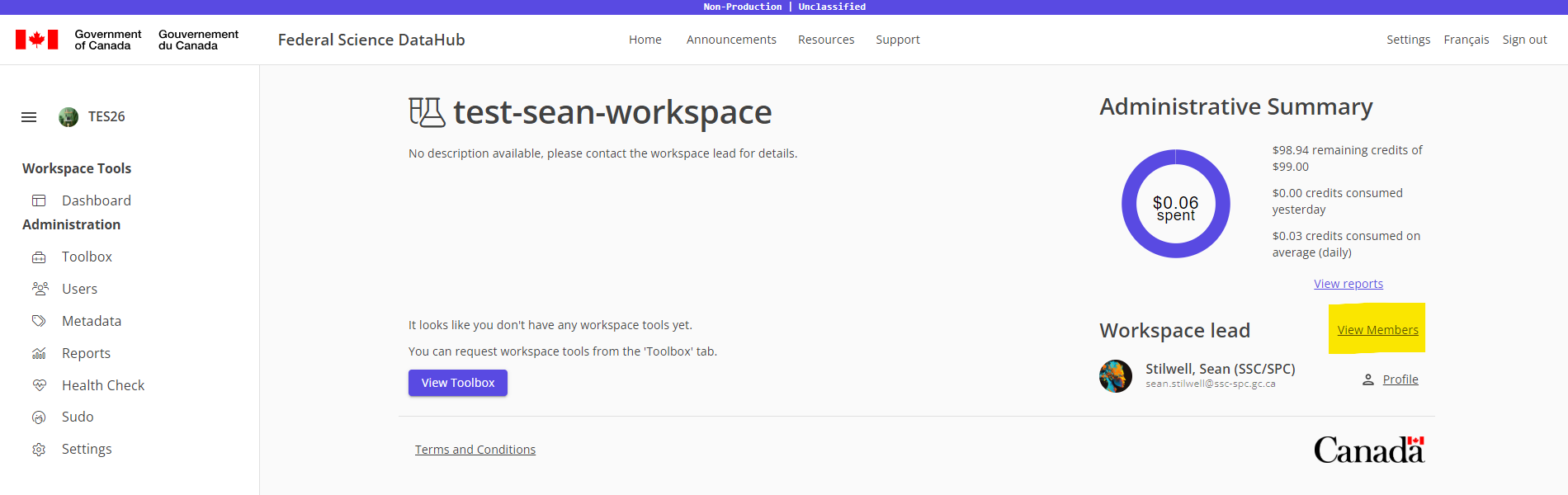
Click on the
Invite New Userbutton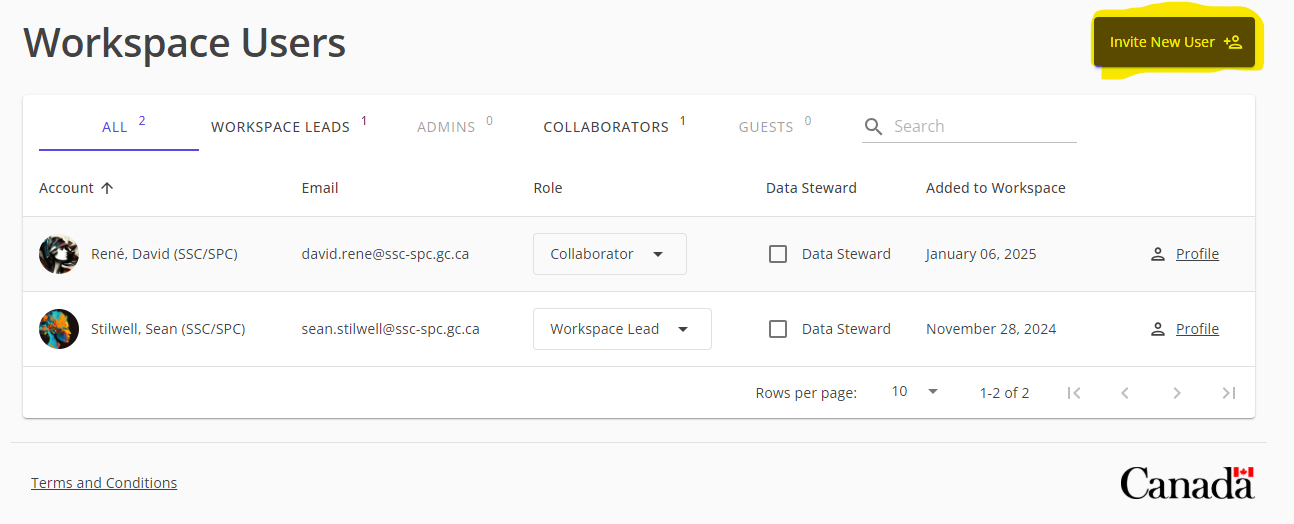
Enter the Government of Canada email address of the user you want to invite and click on the dropdown.
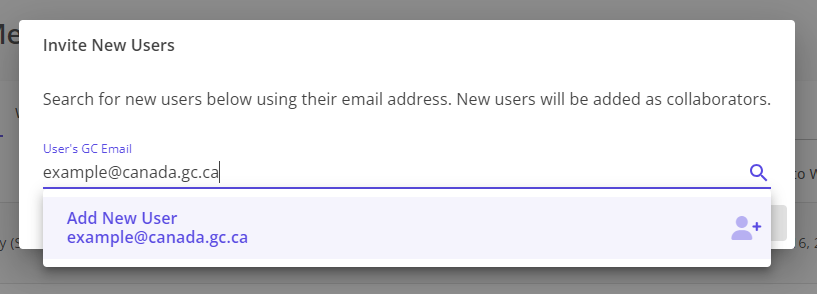
Note: If the user already has an FSDH account they will show up in the dropdown and you can select them.
Select a role for the new user. Click on the
Add New Usersbutton once you have entered all the users you want to invite.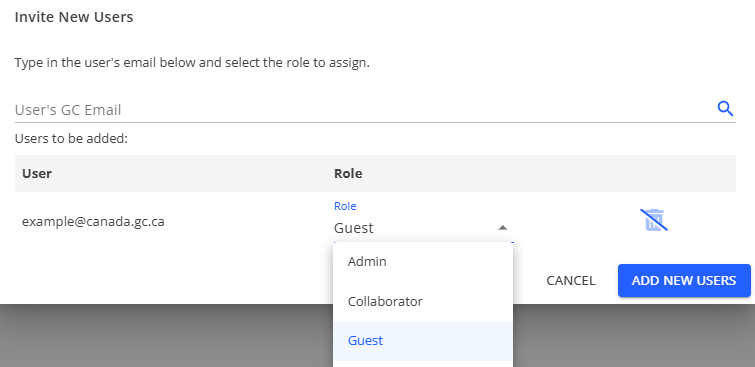
Note: If you want to invite more users, you can always click on the
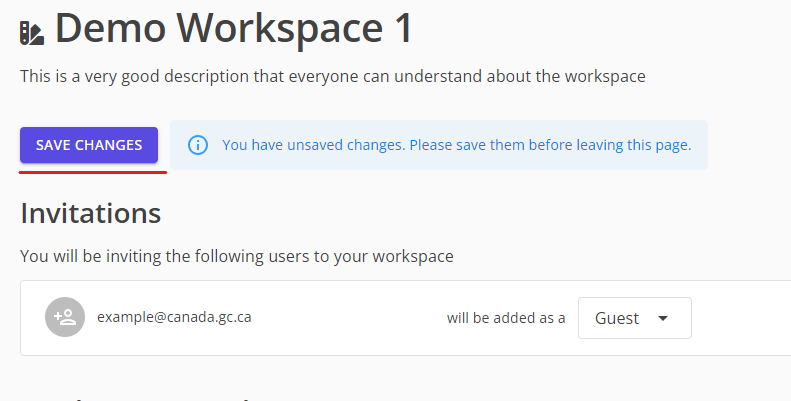
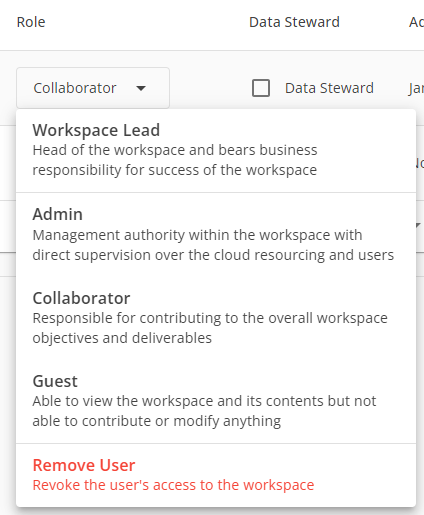
Invite New Userbutton again and repeat the process.If you want to change the role of a user you just invited, click on the dropdown role of the user you will be inviting into your workspace.
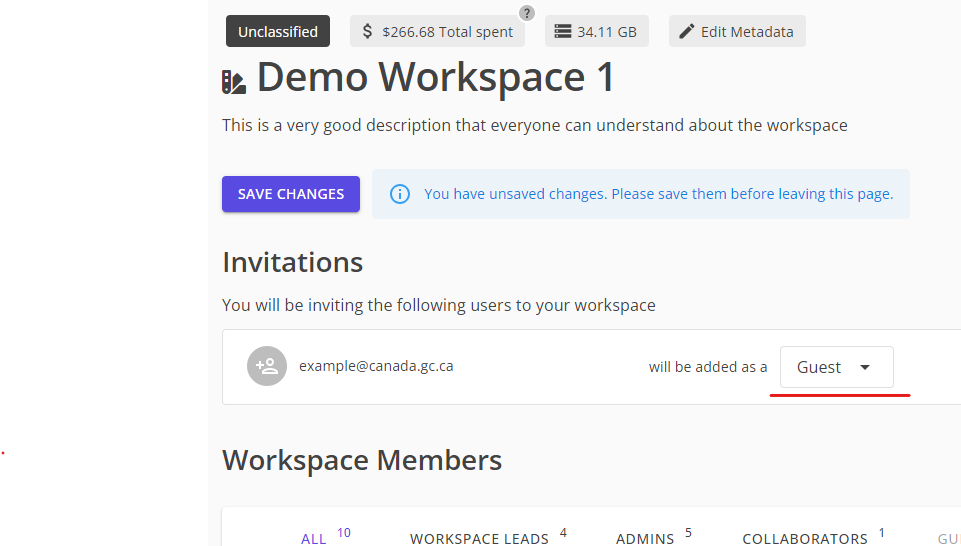
Select the new role from the dropdown
Click
Save Changesat the top of the page