
Add a User to PostgreSQL on FSDH
As a workspace lead, you must create a user account for each user who needs access to the PostgreSQL database on the Federal Science DataHub (FSDH). This guide will walk you through the steps to add a user to the PostgreSQL database on FSDH.
Option A. Using an SQL Query
Connect to the PostgreSQL database using a tool like
psql, Python, or any other SQL client.Run the following SQL query to create a new user:
CREATE USER <username> WITH PASSWORD '<password>';
Replace <username> with the desired username and <password> with the desired password for the new user.
- Grant the necessary permissions to the new user. For example, to grant all privileges on a specific database, run the following SQL query:
GRANT ALL PRIVILEGES ON DATABASE <database_name> TO <username>;
Replace <database_name> with the name of the database you want to grant access to.
- Validate that the user has been created successfully by checking the list of users in the PostgreSQL database.
Option B. Using pgAdmin
Open pgAdmin and connect to the PostgreSQL database.
Right-click on the
Login/Group Rolesnode and selectCreate>Login/Group Role.In the
Generaltab, enter the desired username in theNamefield.
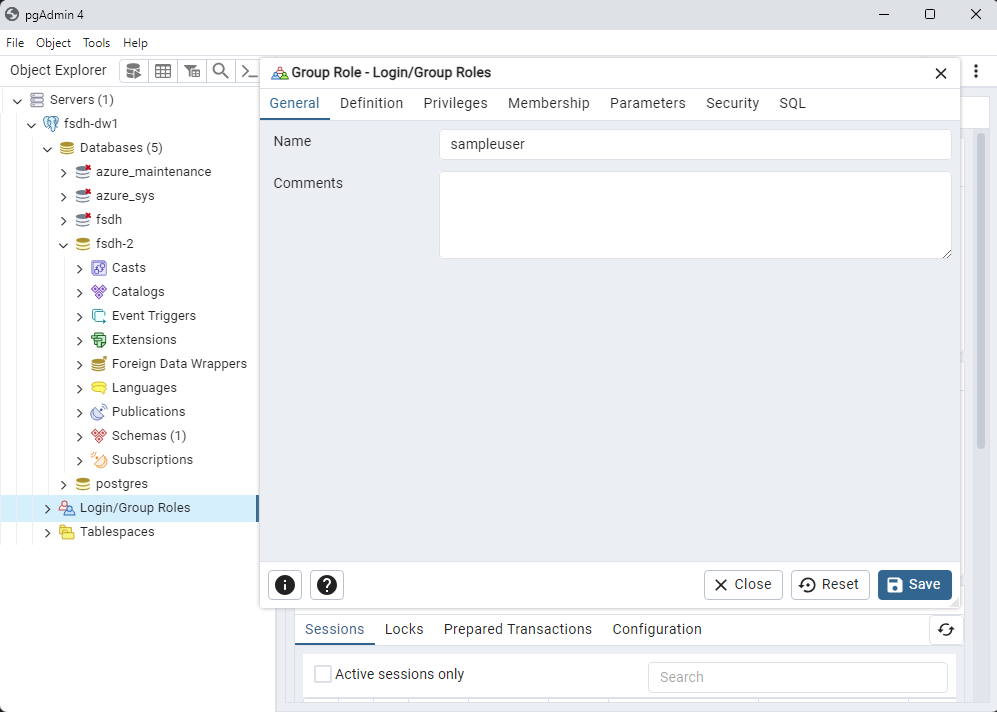
In the
Definitiontab, enter the desired password in thePasswordfield.In the
Role Privilegestab, grant the necessary privileges to the new user.Click
Saveto create the new user.Validate that the user has been created successfully by checking the list of users in the PostgreSQL database.