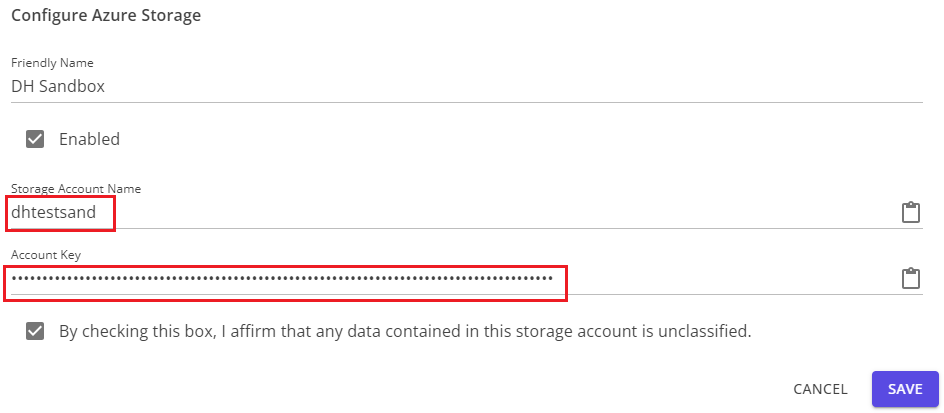
Importing an Existing Azure Storage Account
Importing your own Azure Storage account in Datahub's File Explorer interface is quite simple. You only need the account name and an access key to set it up. To get this information, use the following steps.
Navigate to your FSDH storage and click the Current Container dropdown:
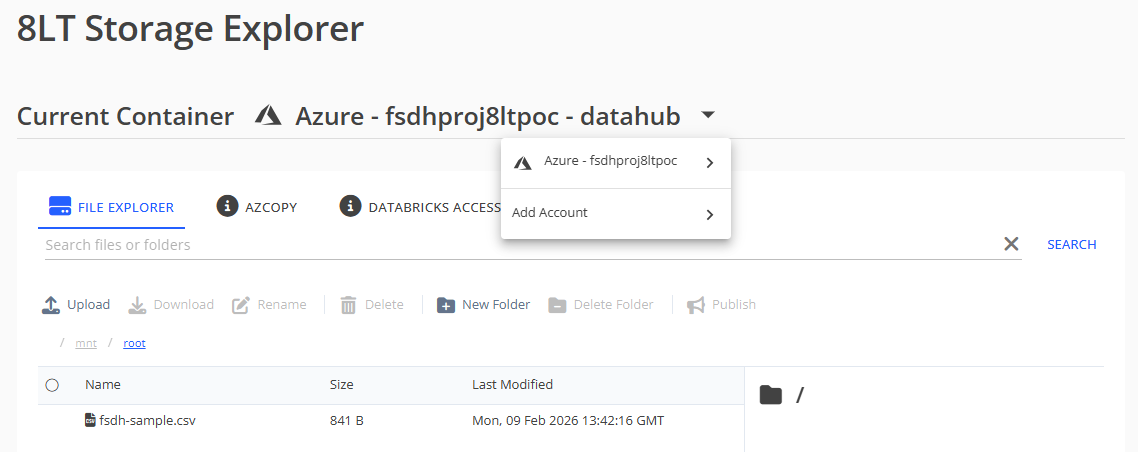
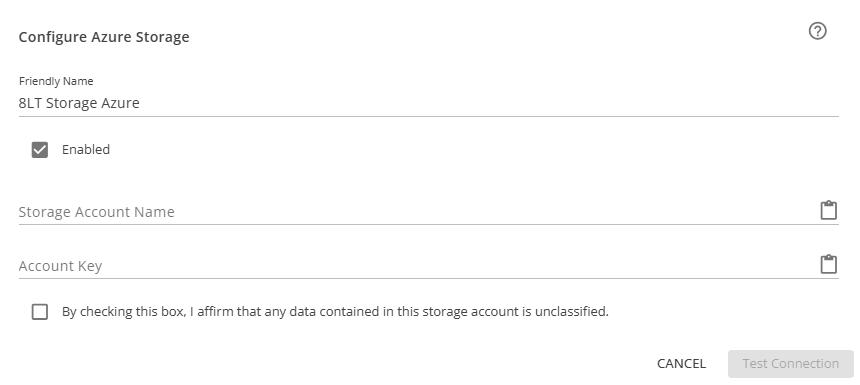
Under "Add Account", click "Azure" to open this menu:
Navigate to the storage account in your Azure Portal, and select Access keys under the Security + networking section in the left menu.

Note the Storage account name - this will need to be entered into the account configuration dialog in Datahub. For the access key, you can use either of the keys. If the key being used gets rotated (i.e. a new one is generated to replace it), the setting in Datahub will need to be updated. Click on the Show button beside the key you wish to use.
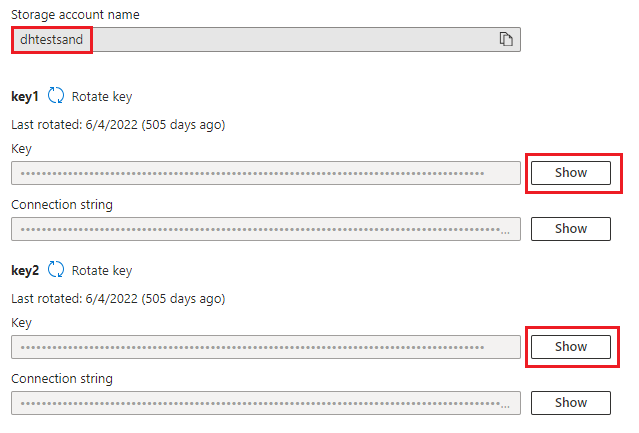
When the key is revealed, you can use the Copy to clipboard button to copy the key.

The Storage Account Name and Account Key can now be entered into the Azure storage dialogue.