Federal Science DataHubFederal Science DataHub
  • English
  • Français
  • English
  • Français
  • Overview
  • Managing Workspaces and Users

    • Getting a workspace (only available on the GC network)
    • Estimate costs (only available on the GC network)
    • Account Setup
    • Requesting, configuring and removing tools in your workspace
    • Invite a user
    • Change a user role
    • Manage your CBR & workspace budgets
  • Storage

    • Working with Azure Storage
    • Bring Your Own Storage

      • Import AWS S3 Bucket
      • Import Azure Storage
      • Import Google Cloud Platform Storage
    • Access Storage in Databricks
    • Use AzCopy to Interact with Storage
  • Databricks

    • Getting Started with Databricks
    • FSDH Cluster Policies
    • MLFlow: AutoML and Experiments
    • Databricks Workflows
    • Dashboarding

      • How to Dashboard in Databricks
      • Dashboarding Tool Comparison
    • External Extensions

      • Git/GitHub Integration with Databricks
      • Databricks VS Code Extension
      • Working with Conda
      • Connecting Google API to Databricks
  • PostgreSQL

    • Create and use a PostgreSQL Database
    • Add a User to PostgreSQL on FSDH
    • PostgreSQL vs Azure Databricks Database Features
  • Web Applications

    • Hosting Web Apps on DataHub
  • Migrating to Production

    • Migrating Storage
    • Migrating Databricks
    • Migrating PostgreSQL
    • Migrating Web Apps
  • User Guidance

    • Account Management and Access control of workspaces
    • Backup and Recovery
    • Github and code repo management
    • Incident Detection & Response
    • Monitor Usage
    • Monitoring and Auditing a Workspace
    • Source code
    • Restricted File Types on FSDH Storage
  • Terms and Conditions

Import Azure Storage

Importing your own Azure Storage account in Datahub's File Explorer interface is quite simple. You only need the account name and an access key to set it up. To get this information, use the following steps.

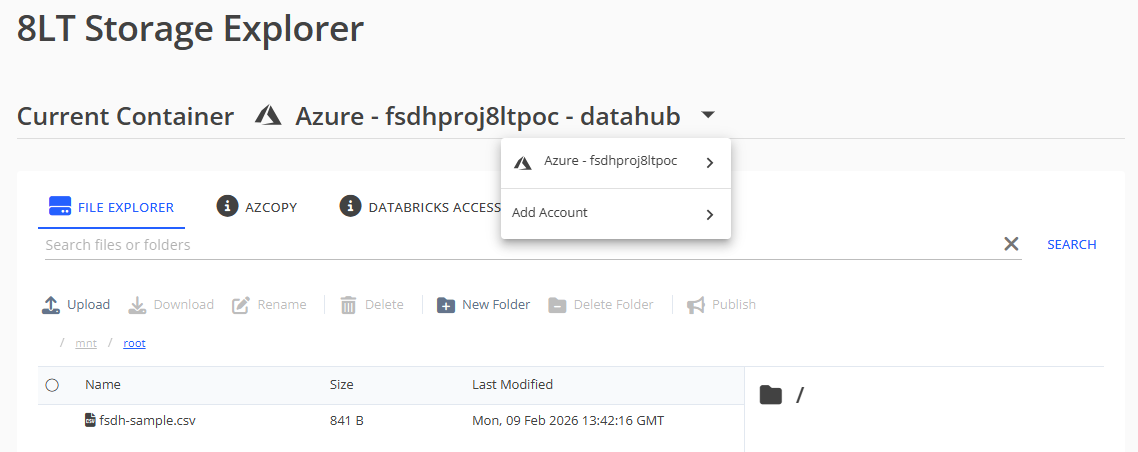
  1. Navigate to your FSDH storage and click the Current Container dropdown: Current container dropdown
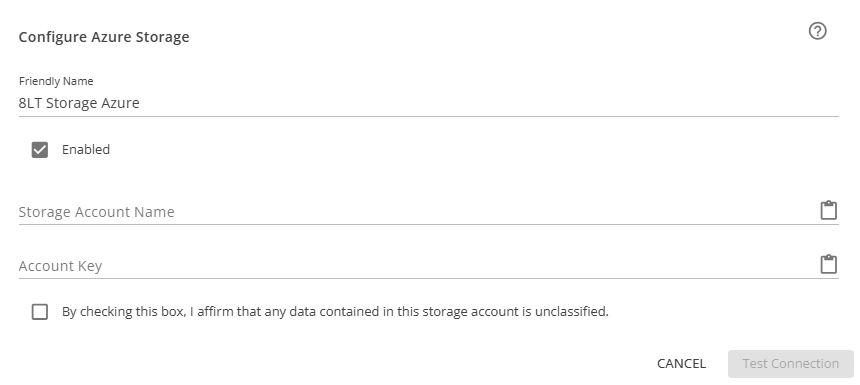
  2. Under "Add Account", click "Azure" to open this menu: Add Azure storage
  3. Navigate to the storage account in your Azure Portal, and select Access keys under the Security + networking section in the left menu.
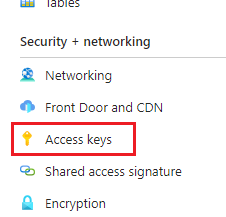
    Access keys in menu

  4. Note the Storage account name - this will need to be entered into the account configuration dialog in Datahub. For the access key, you can use either of the keys. If the key being used gets rotated (i.e. a new one is generated to replace it), the setting in Datahub will need to be updated. Click on the Show button beside the key you wish to use.
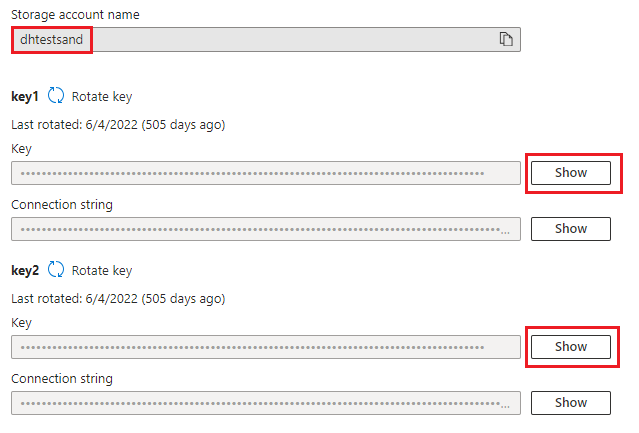
    Access keys page

  5. When the key is revealed, you can use the Copy to clipboard button to copy the key.

    Copy access key

The Storage Account Name and Account Key can now be entered into the Azure storage dialogue.
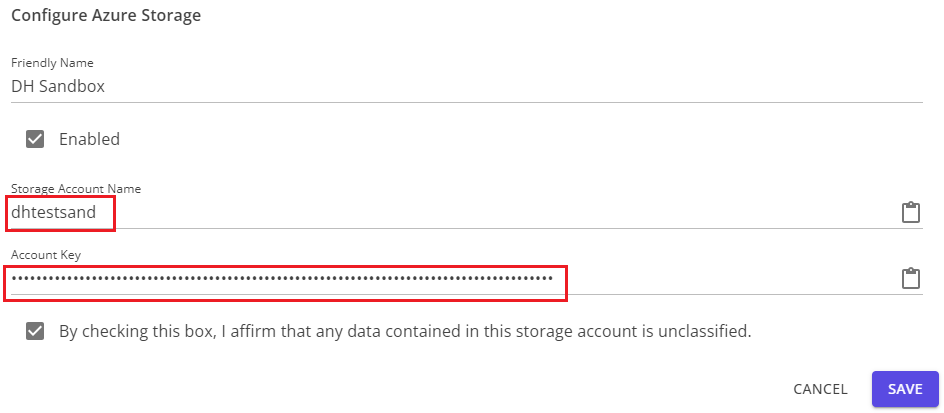
Azure storage dialogue

Edit this page on GitHub
Last Updated: 2026-04-22, 3:58 p.m.
Previous
Import AWS S3 Bucket
Next
Import Google Cloud Platform Storage