Federal Science DataHubFederal Science DataHub
  • English
  • Français
  • English
  • English
  • Français
  • English
  • Overview
  • Managing Workspaces and Users

    • Getting a workspace (only available on the GC network)
    • Estimate costs (only available on the GC network)
    • Account Setup
    • Requesting, configuring and removing tools in your workspace
    • Invite a user
    • Change a user role
    • Manage your CBR & workspace budgets
  • Storage

    • Working with Azure Storage
    • Bring Your Own Storage

      • Import AWS S3 Bucket
      • Import Azure Storage
      • Import Google Cloud Platform Storage
    • Access Storage in Databricks
    • Access Storage in Power BI
    • Use AzCopy to Interact with Storage
  • Databricks

    • Getting Started with Databricks
    • FSDH Cluster Policies
    • MLFlow: AutoML and Experiments
    • Databricks Workflows
    • Dashboarding

      • How to Dashboard in Databricks
      • Dashboarding Tool Comparison
    • External Extensions

      • Git/GitHub Integration with Databricks
      • Databricks VS Code Extension
      • Working with Conda
      • Connecting Google API to Databricks
  • PostgreSQL

    • Create and use a PostgreSQL Database
    • Add a User to PostgreSQL on FSDH
    • Access PostgreSQL in Power BI
    • PostgreSQL vs Azure Databricks Database Features
  • Web Applications

    • Hosting Web Apps on DataHub
    • Demo Apps

      • Django (Python)
      • Django Configuration for FSDH
      • Dash (Python)
      • Flask (Python)
      • Shiny (R)
      • Streamlit (Python)
  • Migrating to Production

    • Migrating Storage
    • Migrating Databricks
    • Migrating PostgreSQL
    • Migrating Web Apps
  • User Guidance

    • Account Management and Access control of workspaces
    • Backup and Recovery
    • Code Management
    • Restricted File Types on FSDH Storage
    • Workspace Monitoring
  • Terms and Conditions

Access PostgreSQL in Power BI

You can connect to your FSDH PostgreSQL database from Power BI by following these steps.

Ensure that you have Power BI Desktop installed and that you have added your machine to the PostgreSQL firewall, see the PostgreSQL documentation for how to do this.

  1. In Power BI, click "Get data from another source". The Power BI landing page with the button "Get data from another source" highlighted in yellow.

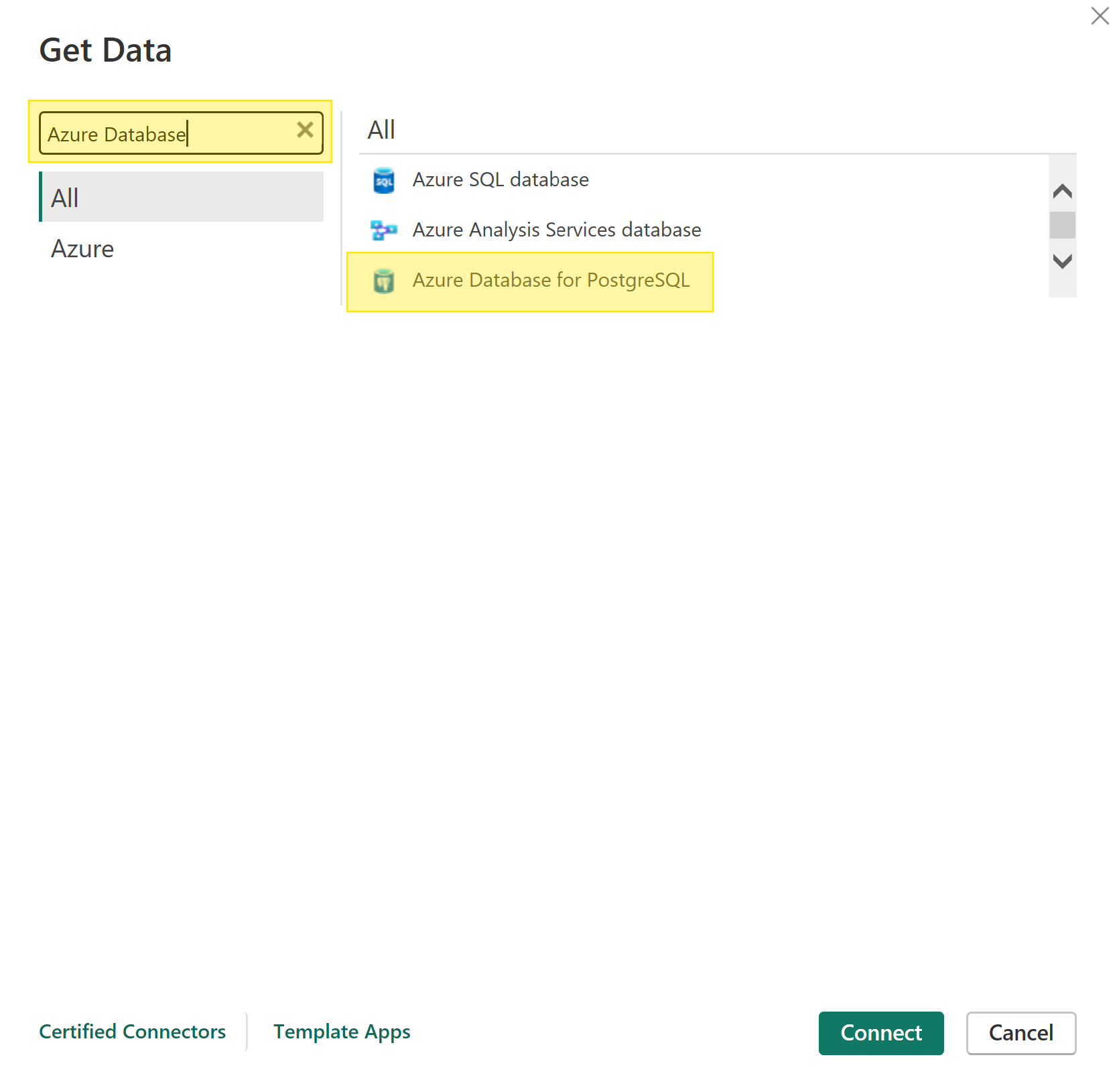
  2. Search for "Azure Database for PostgreSQL" in the search field, select it then click Connect. The "Get Data" popup is open. "Azure Database" is typed into the search box. The field "Azure Database for PostgreSQL" is highlighted in yellow.
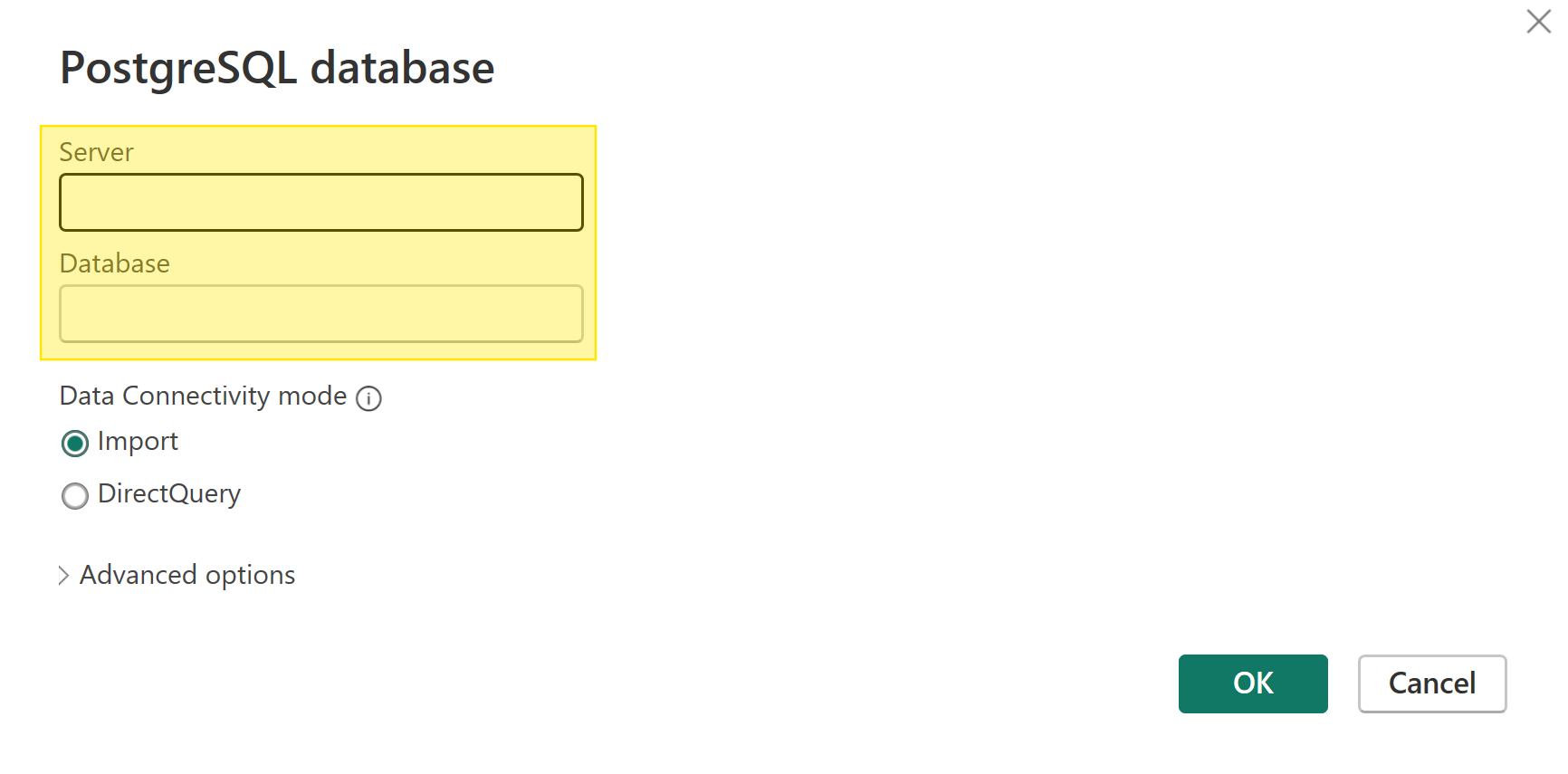
  3. Enter your host name for Server and "fsdh" for Database (by default). The PostgreSQL database connection popup is open. The "Server" and "Database" fields are highlighted in yellow.
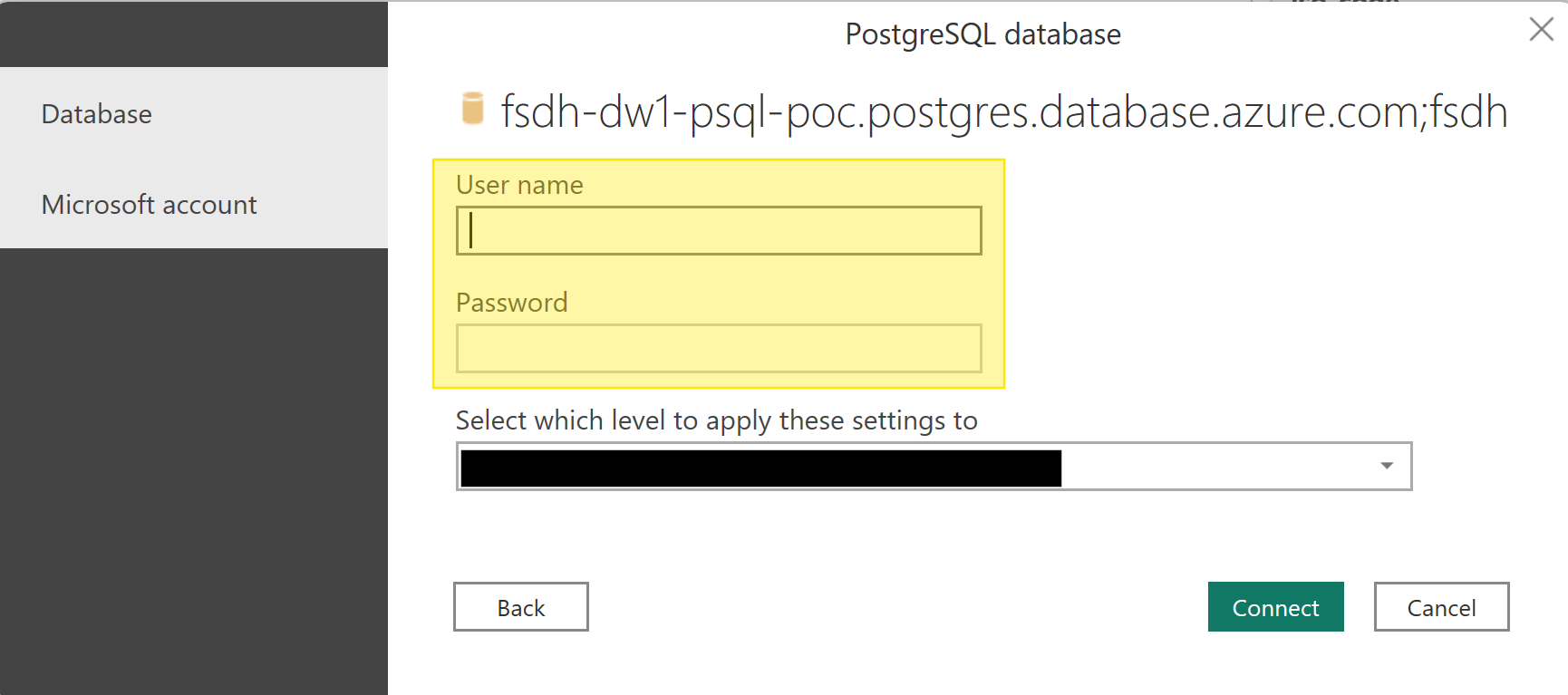
  4. Enter the username and password to connect to your database. The PostgreSQL database connection popup is open. The "User name" and "Password" fields are highlighted in yellow.
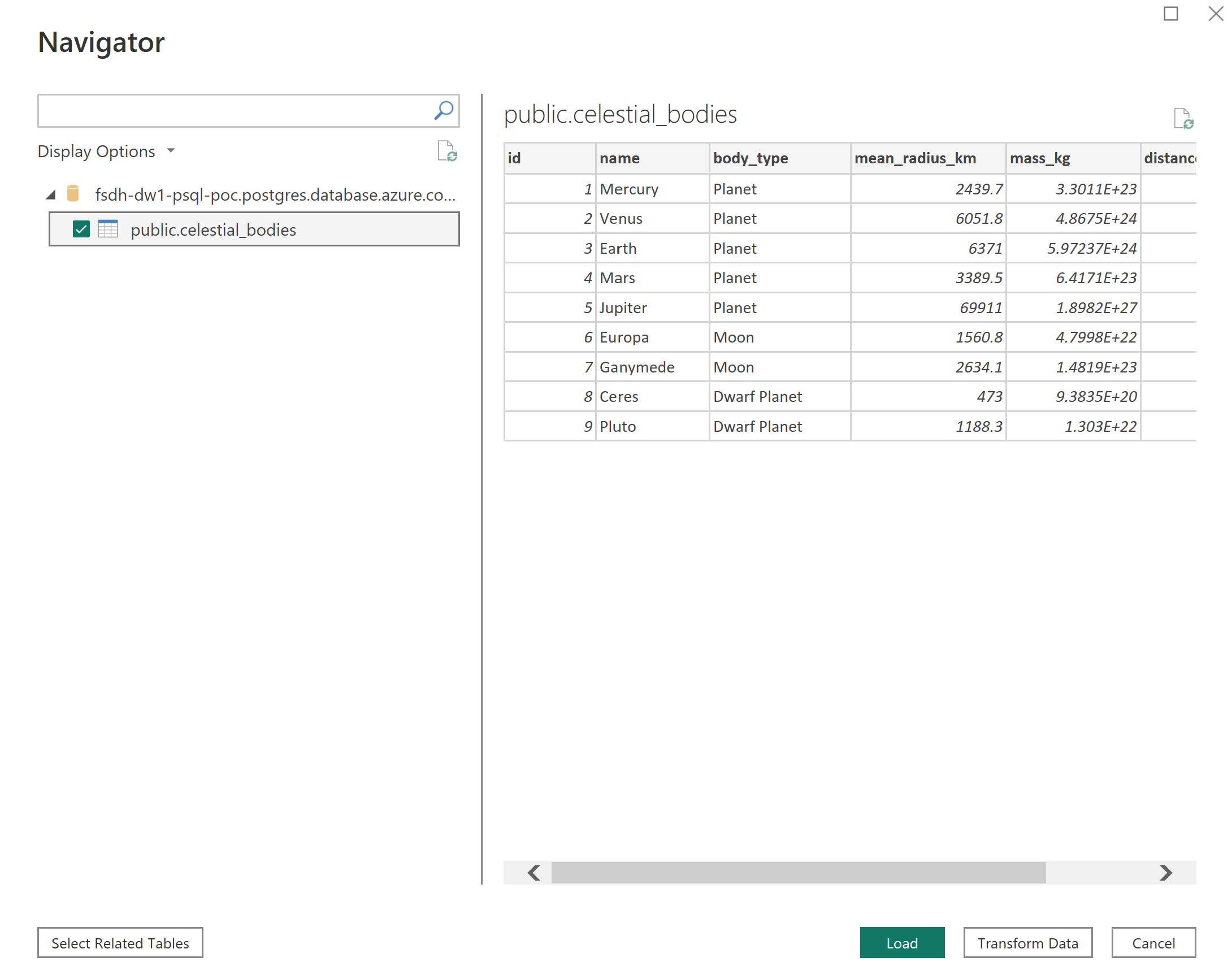
  5. Select your tables and click Load to load the data. The Navigator window is open. It shows a table from the database in the preview screen and is ready to import.
Your data is now accessible from Power BI.

Edit this page on GitHub
Last Updated: 2026-08-11, 5:31 p.m.
Previous
Add a User to PostgreSQL on FSDH
Next
PostgreSQL vs Azure Databricks Database Features